Creating an API.Bible Account
To create an API.Bible account, visit api.bible
From the homepage, select either:
- Starter Plan (free, non-commercial use only)
- Pro Plan (paid monthly subscription)
Click Get Started Now under your desired plan to begin.
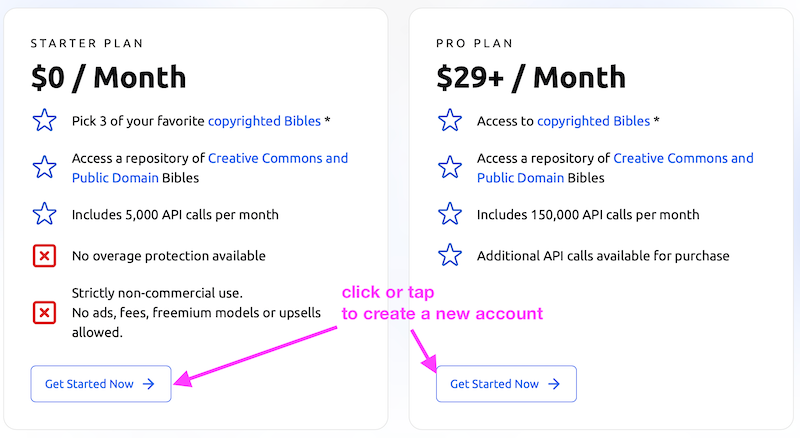
How to Create an Account
Account setup consists of the following steps:
- Customize Your App
- Create Your Account
- Accept Terms & Agreements
- Enter Payment Information (Pro Plan only)
- Provide App Details
Step 1: Customize Your App
Your App
Enter the name of your app. You can create multiple apps from your dashboard, and each app will receive its own API key.
Digital Licensing Use
- The Starter Plan does not support commercial use.
- If your app generates revenue, you must select a Pro Plan and appropriate commercial agreement.
- If your app is not monetized, select non-commercial use.
End Users (Monthly)
Estimate the number of unique monthly users expected for your app.
This estimate may affect licensing eligibility. Example: Some translations (such as NKJV) are only available for apps with fewer than 5,000 monthly users.
Additional Bibles
By default, Open Access Bibles (Public Domain and Creative Commons) are included.
You may also select additional copyrighted translations:
- Starter Plan: Up to 3 popular English Bibles may be added.
- Pro Plan: Additional copyrighted Bibles may be included (availability and pricing vary depending on commercial status and user volume).
If no Bible licenses are added, you will see the alert: “You have not added any Bible version licenses to your cart.”
Review your selections in the right sidebar and click Continue.
Step 2: Create Your Account
Enter your account details. All fields are required.
- First Name
- Last Name
- Organization Type (Individual, Non-Profit Organization, For-Profit Organization, Church, Other)
- Organization Name
- If “Individual” is selected, enter your full legal name.
- Organization Location (Country)
- Email Address (used for login)
- Password
Password requirements:
- Minimum 8 characters
- At least one lowercase letter
- At least one uppercase letter
- At least one number
- At least one special character: !@#$%^&*()_+
Complete the CAPTCHA and click Create Account.
If You Receive an Error
If you see the message: “We couldn't create your account.” The email address may already be in use. If the email belongs to you, reset your password at api.bible/reset-password
Verify account
You will receive an email containing a verification code.
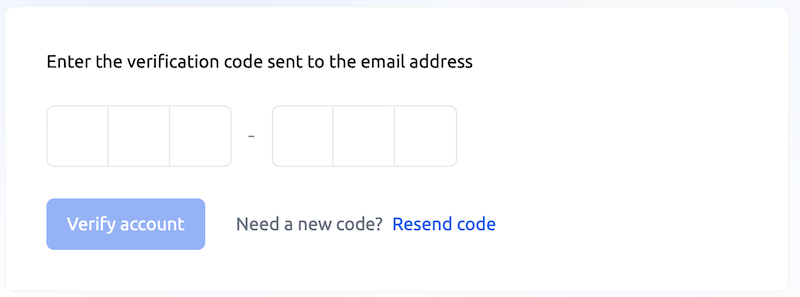
Do not close your browser window. Enter the verification code and click Verify Account to continue.
Step 3: Terms & Conditions
You will be presented with required legal documents, including:
- Terms of Service
- Applicable Licensing Agreements
- Statement of Orthodoxy

Click each document title to review it in full. You must scroll through each document before accepting.
- Check the agreement box
- Click Accept the Terms to digitally sign
You may optionally click Download Document to save a copy.
You must accept all required documents before proceeding. If the Create Application button is greyed out, one or more documents have not yet been accepted.
Click Create Application in the right sidebar to continue. (If the cart is not visible, click the cart icon in the upper-right corner.)
Step 4: Enter Payment Information (only for Pro plan)
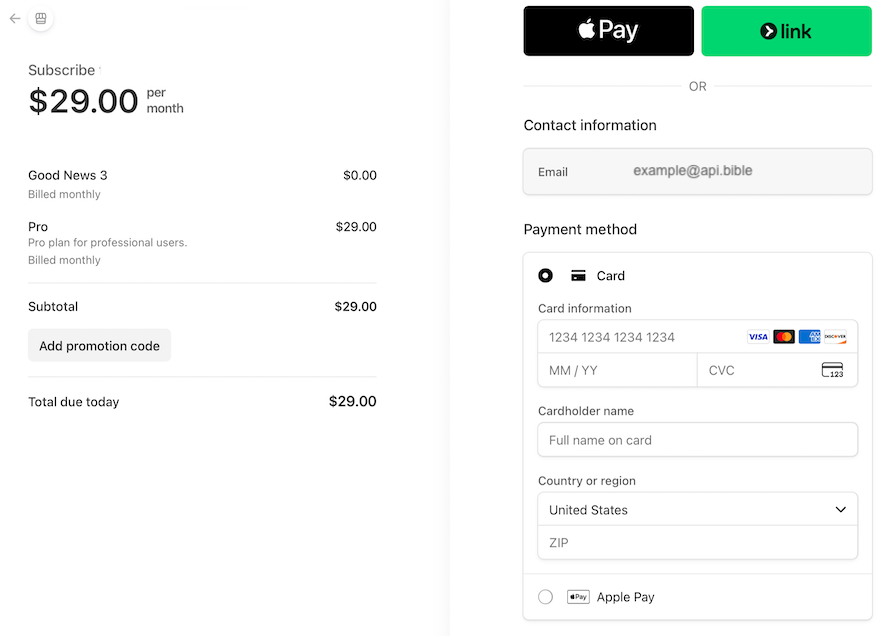
If you selected the Pro Plan, you will enter payment information.
Accepted payment methods:
- Apple Pay
- Link
- Credit card
- Billing is monthly
- Charges are processed in USD
- Payments are securely processed via Stripe
After successful payment, you will proceed to final app details.
Final Step: Provide App Details
You must provide accurate and complete information about your application. Inaccurate or misleading information may result in license review or revoked access.
Web App URL
Enter the public URL where your app is available.
Description
Provide a brief description of your application.
Application Type (select all that apply)
- Website
- Mobile App
- Desktop App
- Cross Platform
- Other
If Mobile App is selected, you must provide store listing URLs:
- Apple App Store
- Google Play Store
- Other store (if applicable)
Application Category
- Daily Reading
- Bible Verse Memorization
- Church Service / Mass Use
- Full Bible Reader
- Game
- Commentary
- Other
Target Audience
- Children
- Adults
- Church Congregation
- Unreached Groups
- Non-believers
Application Purpose
- Education
- Evangelism
- Discipleship
- Memorization
- Administrative
- Other
App Logo
Upload a logo file (.jpg, .png, or .gif). Click Finalize Application to complete setup.
App Dashboard
Once all steps are complete, your application will be created and you will see the Welcome to Your Dashboard screen.
From the dashboard, you can:
- Access your API key
- Manage apps
- Review licenses
- Update plan information